Connect Your Figma Account
Before importing, you’ll need to connect your Figma account to Magic Patterns. This connection enables both copy-paste imports and URL-based imports.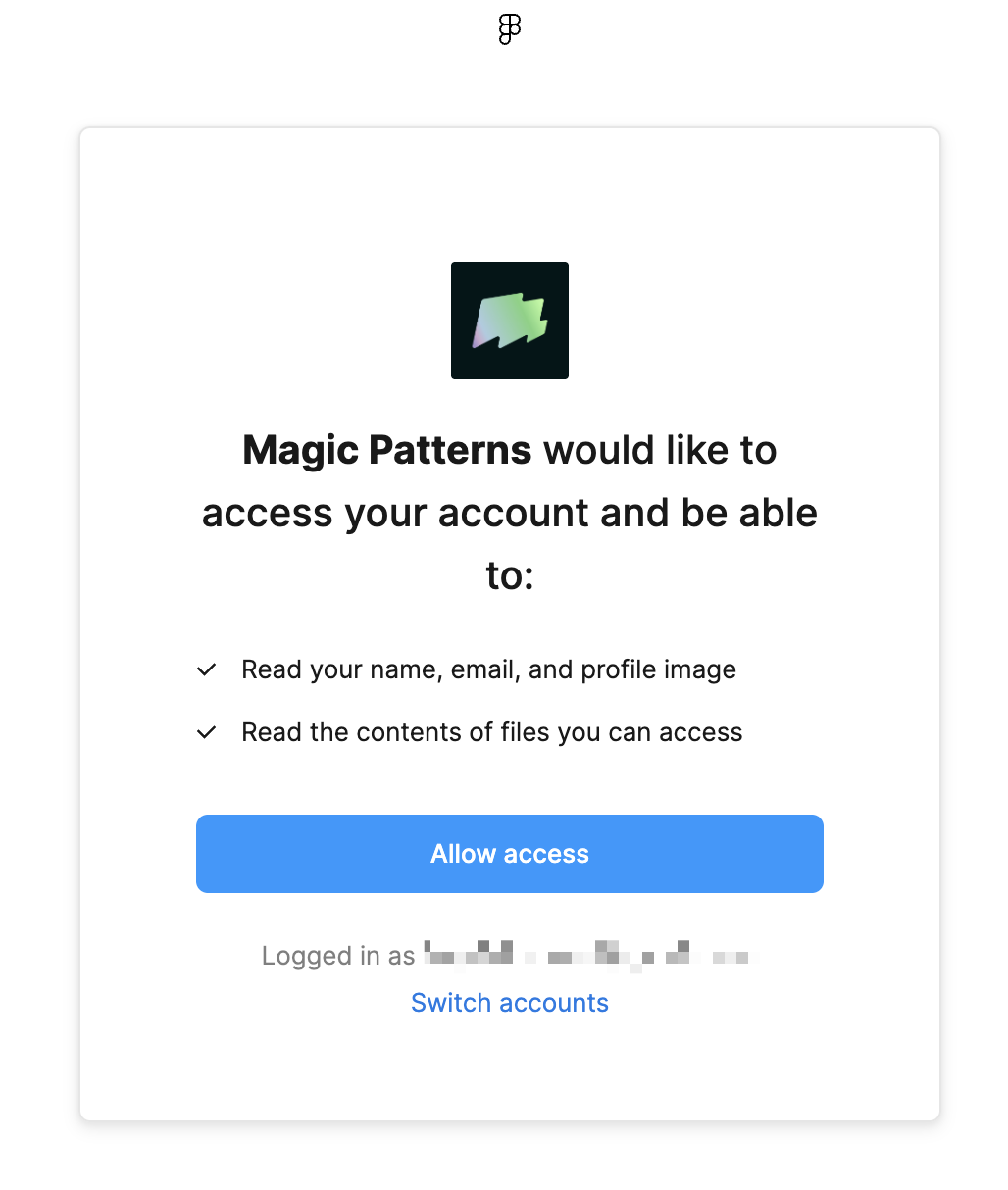 When you connect your Figma account, we automatically use the Figma MCP Server to provide more precise imports by extracting detailed design information from your files.
MCP (Model Context Protocol) allows AI tools to communicate through a common interface. With MCP, we can access richer design data from Figma, resulting in better import quality.
When you connect your Figma account, we automatically use the Figma MCP Server to provide more precise imports by extracting detailed design information from your files.
MCP (Model Context Protocol) allows AI tools to communicate through a common interface. With MCP, we can access richer design data from Figma, resulting in better import quality.
The Figma MCP Server is only available for
Dev and Full Figma accounts.
Free and Collab accounts will still work but may have less precise
imports.Copy and Paste Import
The fastest way to import from Figma is to simply copy a frame or component in Figma and paste it directly into Magic Patterns. Once your Figma account is connected, Magic Patterns will automatically detect the pasted design and import it.Import via URL
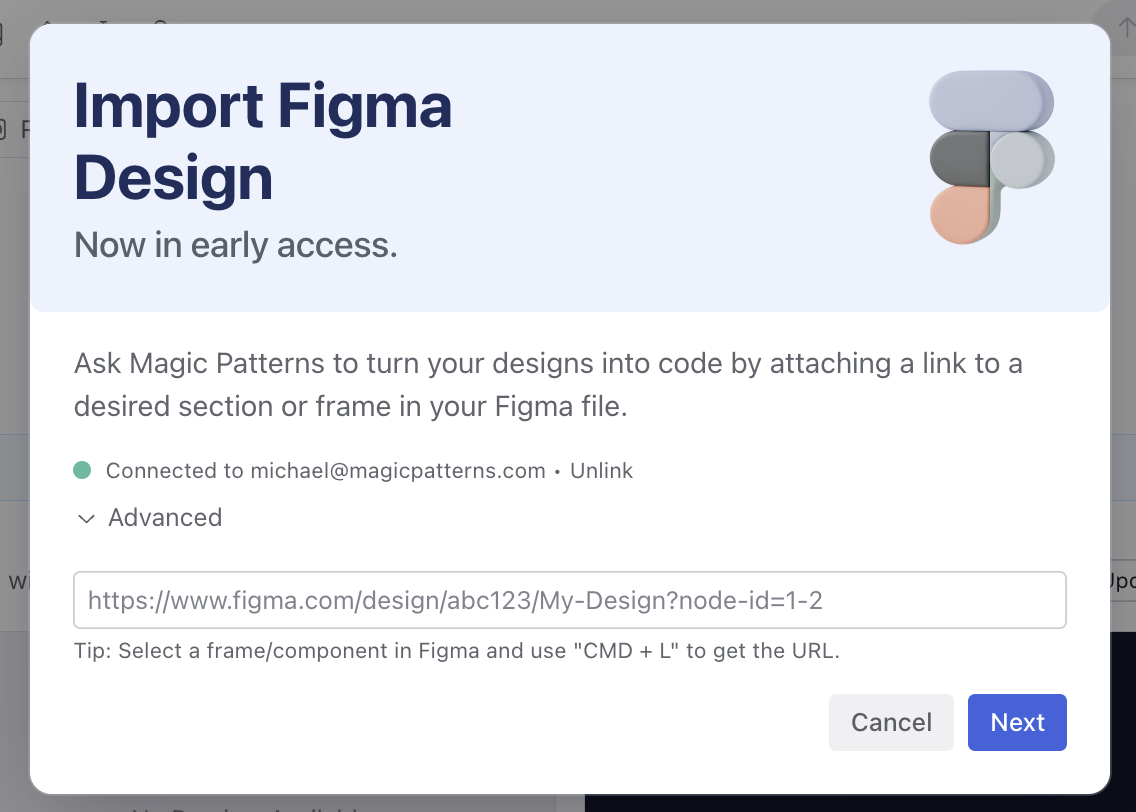
You can also import by pasting a Figma URL. This method works well when you want to share a specific frame link or import from a file you’re not actively working in.You can import one frame at a time. If you need to import multiple frames,
repeat the import process for each frame. Import from Figma won’t always
generate a pixel-perfect frame. That’s because every Magic Patterns design is
code-first and interactive, whereas Figma frames are not.
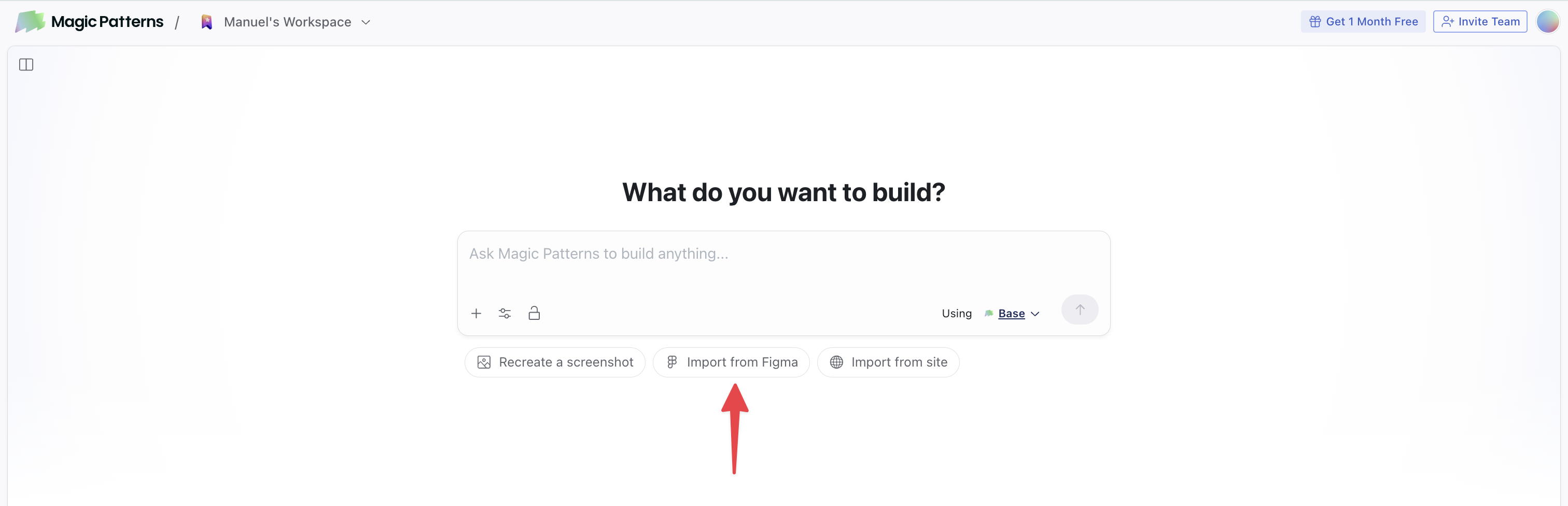
Create a new design from the dashboard and click on the 'Import from Figma' button.
 You can also import Figma components as Magic Patterns components by going into a Design System, clicking Create Component, and choosing the Import from Figma tab.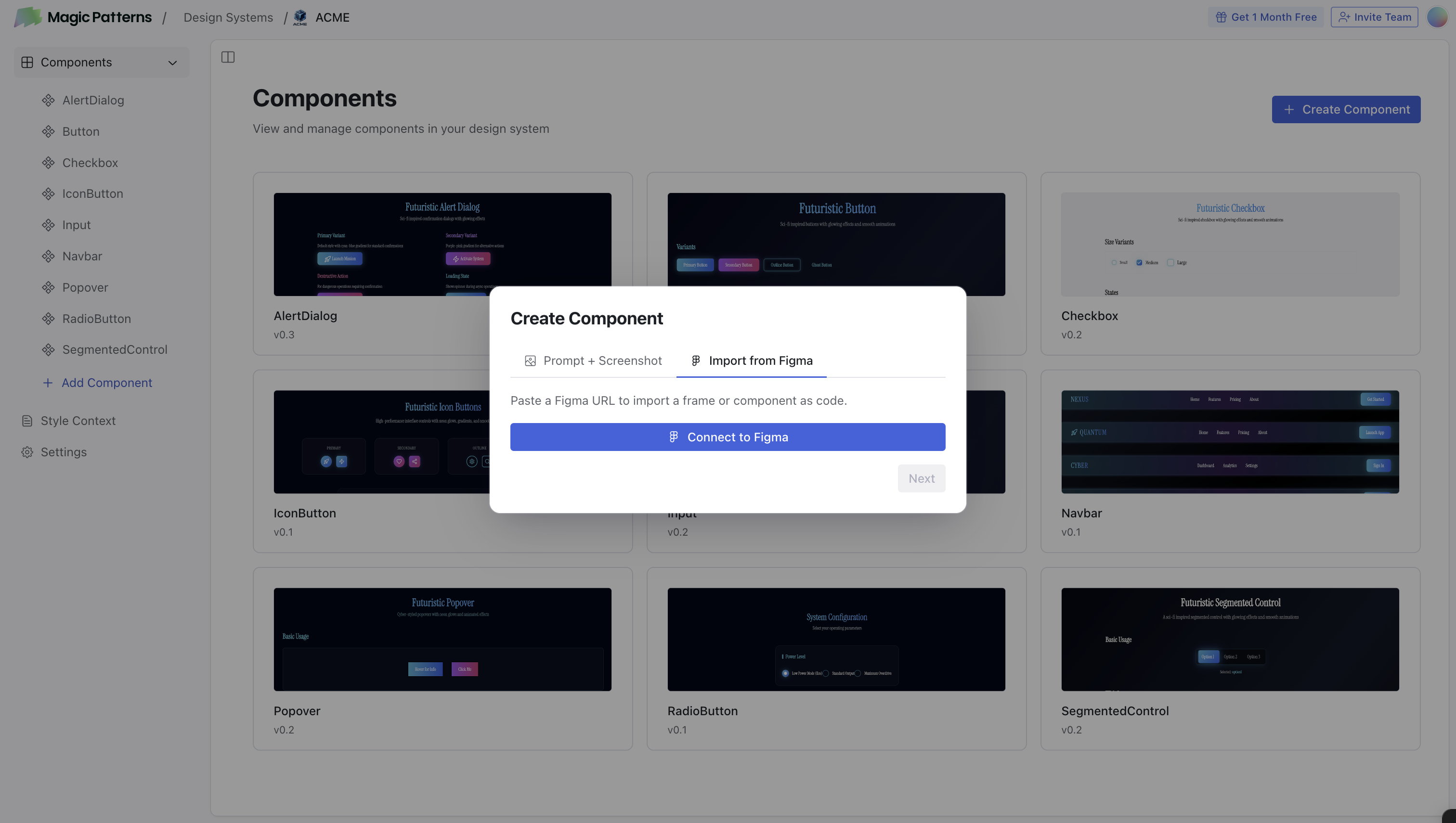
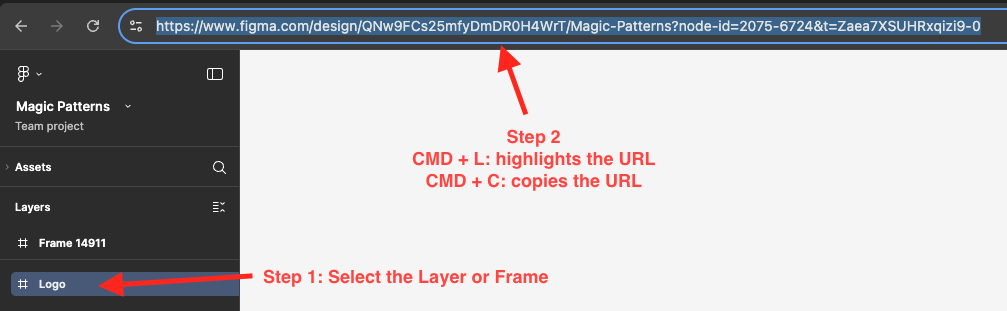
Copy the link to a frame in Figma.
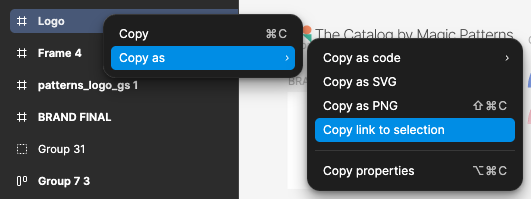
Select a frame/component in Figma, right click and select ‘Copy as’ and then ‘Copy link to selection’. CMD + L allows you highlight the link to the selection directly.